Cascading Style Sheets
Now that you have learned about the structure of HTML elements and the characters and key components, you will learn about another level of detail that is used to organize and render better designed web pages: Cascading Style Sheets (CSS). While HTML is the means for structuring web page text, CSS is used for stylistic elements, such as color, font, and other visual elements. You will learn how CSS is used to create a more consistent look and feel on a web page, and about styles that follow current industry standards. The appropriate use of color is an important aspect of HTML content design.
This module will add to your knowledge concerning HTML format and style commands. You will learn how to use rulesets and how visual instructions for text, such as fonts, color, and alignment are incorporated in tags. CSS elements must also follow specific syntax rules to annotate different HTML text content properties and property values. Some properties you will learn include font style, weight, and line-height. It is essential to reload your HTML page when making formatting changes. Since this will allow the browser to read the new/edited version of your HTML file and render any changes into the web page display.
Color may be added to an HTML page background, headers, or body text. You will learn about possible color choices, how tags are used to designate color, and how colors are classified using various alpha and numeric values, such as with RGB and hexadecimal values.
This module will cover the following topics:
- Why separate structure and format?
- basic CSS commands’
- specificity
- block and inline elements
- color related attributes
- text related attributes
- the box model
- positioning
- styling
By the end of this module you should be able to answer the following questions:
- Why should a developer separate HTML and CSS (structure and format)?
- What is a rule-set and why is it used?
- How can a developer determine what CSS rule will take precedence in a stylesheet?
- How can color and text attributes be used to improve the look and feel of a web page?
Why Separate Structure and Format?
Learning Objectives
- Define the Cascading Style Sheets (CSS) standard.
- Apply HTML elements and tags to format paragraphs and text.
CSS is a language used to define uniform styles to HTML tags. There are three different ways to insert CSS instructions into the HTML code:
- inline definition: defines the
styleattribute within each HTML tag - internal definition: defines styles within
styletags in the header of an HTML file - external definition: defines styles in a separate file that is referred as a link in the header of an HTML file
Look at these examples that compare the three CSS forms:Considerations for determining which CSS definition method to use:
Inline and Internal:
- Inline definition works well when CSS styles will be applied to specific sections of an HTML file, rather than the entire file.
- Internal definition works well when the CSS styles will be applied to all elements within the HTML file.
- The use of inline and internal definitions reduces the number of files your web browser must download before displaying the content on the web page, because the CSS style is embedded in the HTML file.
- Coding CSS instructions inline or internally will also increase the amount of time needed to add each of the CSS style definitions to the HTML file, so these two methods are generally not recommended when applying style definitions to multiple pages within a website.
External
- When using external CSS files, the browser must download the HTML file first, then the CSS files.
- The primary advantage of CSS external definition is that it allows for design elements to be applied across multiple HTML files; the industry standard is to create an external
styles.cssfile that holds all CSS definitions to be applied to your HTML files, making it easier to produce a more uniform design
Read section “CSS” (opens new tab) of Chapter 3 in Practical Web Development.
This section discusses more about cascading style sheets, and adding styles to documents.
As you read, consider the following questions:
- What is a selector?
- the part before the curly brace – p.red {…
- How do CSS rules become part of a document?
- External style sheets, Internal CSS, and Inline Styles
- Where should <link> elements reside, and why?
- in the header so the whole document can use it
Watch “CSS syntax and terminology” (opens new tab) in the course CSS Essential Training from LinkedIn Learning.
This video teaches about different CSS syntax options, as well as CSS terminology.
As you watch, consider the following questions:
- What are declarations?
- the style rules within the core area ended with a ;
- What is the syntax for a CSS comment?
- /* comment */
- What is whitespace and how is it used in CSS?
- how you indent and make your document look
Basic CSS Commands, a.k.a., Rule-Sets
Learning Objectives
- Define the Cascading Style Sheets (CSS) standard.
- Apply basic aspects of CSS.
- Apply HTML elements and tags to format paragraphs and text.
The basic structure of CSS commands is a sequence of CSS rule-sets. Each rule-set is composed of:
- one selector that describes the HTML tag to which it applies
- a set of declarations are delimited by semi-colons within the curly brackets, with each declaration being composed of a property:value pair
For example, the following rule-set defines two properties for a paragraph tag:
p { font-family:arial; text-align:right; }
In this example:
pis the selectorfont-familyis the property of the first declarationarialis the value of the first declarationtext-alignis the property of the second declarationrightis the value of the second declaration
This rule-set defines that, by default, all paragraphs in the HTML file will be displayed using Arial font and the text will be right aligned.
While rule-sets may be applied to one of the text categories (body, h1, h2, h3, h4, h5, h6, p) you can also use rule-sets to produce different formatting options for elements of the same category. This is usually made by defining classes with a category.
For example, if you want two paragraphs to use the Arial font family, with one aligned to the right and the other centered, you may use the following rule-sets:
p {font-family:arial;}
.pr {text-align:right; }
.pc {text-align:center; }
Once those rule-sets are defined, each paragraph must specify the corresponding classes, as shown:
<p class="pr">This paragraph is aligned to the right.</p>
<p class="pc">This paragraph is aligned to the center.</p>
Read section “Selectors” (opens new tab) of Chapter 3 in Practical Web Development.
This section teaches more about CSS selectors.
As you read, consider the following questions:
- What is a descendant?
- attached to all levels of child and parent
- What is a child selector?
- is attached to just one level of the direct child of an element
Watch “Referencing CSS” (opens new tab) in the course CSS Essential Training from LinkedIn Learning.
This video teaches about the different methods CSS files can be called from HTML.
As you watch, consider the following questions:
- What are the two ways to load an external CSS file into HTML?
- link and @import
- Why are external CSS stylesheets preferred?
- it’s cleaner and more efficient
Watch “CSS Values and Units” (opens new tab) in the course CSS Essential Training from LinkedIn Learning.
This video teaches about specific properties, data types, and values for CSS.
As you watch, consider the following questions:
- What is the difference between absolute and relative values?
- fixed and always the same size – relative are relationship and dependant on parent or child
- What is an initial value? When does this apply?
- default browser styles that are already declared – it applies unless you declare otherwise – keywords
Specificity
Learning Objectives
- Apply basic aspects of CSS.
How do web browsers determine which CSS property value to apply to a given element on the page? The answer is specificity. Specificity is a calculated weight that is applied to a given CSS declaration, determined by the number of each selector type in the matching selector (MDN Web Docs, n.d.). It should be noted that the order matters. If we have multiple CSS declarations that have equal specificity, the last declaration is the one that will be applied to the element. Finally, the essential reading, along with the essential videos and supplemental resources for this topic will explain and demonstrate how specificity is calculated and applied.
Read section “Specificity” (opens new tab) of Chapter 3 in Practical Web Development.
This section illustrates how property values are applied to a given element.
As you read, consider the following questions:
- How is specificity calculated?
- If the rule is an inline style, the first number is 1, otherwise it is 0 Add 1 to the second number for every occurrence of an identifier Add 1 to the third number for every class specified Increase the fourth number by one for every element present
- Which takes precedence, inline styles or external style sheets?
- inline styles take precedence
Watch “Inheritance and Specificity” (opens new tab) in the course CSS Essential Training from LinkedIn Learning.
This video teaches how element styles are applied and inherited in CSS.
As you watch, consider the following questions:
- Which selector has the lowest specificity value, and what does that mean?
- Universal Selector
- Which selector has a higher priority: ID or class?
- ID
Watch “The Cascade and Importance” (opens new tab) in the course CSS Essential Training from LinkedIn Learning.
This video demonstrates how style rules are applied to a document.
As you watch, consider the following questions:
- What is the cascade in CSS?
- style declarations cascade and are read from top to bottom
- What is the purpose of the important keyword?
- overrides source order and specificity
Block and Inline Elements
Learning Objectives
- Apply basic aspects of CSS.
CSS block elements are going to be rectangular areas of the document. These blocks can contain text, data, as well as other block elements. It should be noted that CSS block elements may only appear within a <body> HTML element. Unlike block elements, inline elements can only contain inline elements, and they cannot be given a width. As well, blocks can contain inline elements, but inline elements cannot contain blocks. Finally, block elements always begin on new lines, but inline elements can begin anywhere within the line.
Read section “Block Elements and Inline Elements” (opens new tab) of Chapter 3 in Practical Web Development.
This section explains more about CSS blocks and inline elements.
As you read, consider the following questions:
- How does a developer define an inline block width?
- Basically you don’t, it’s based on the full width of the block
- What is the difference between block and inline elements?
- Block elements can contain inline elements but not the other way around
Watch “Inline, Block, and Display” (opens new tab) in the course CSS Essential Training from LinkedIn Learning.
This video explains inline and block-level elements.
As you watch, consider the following question:
- How can you determine whether an element is a block or inline?
- see how it displays when you put two elements next to eachother – inline will be side by side
Color Related Attributes
Learning Objectives
- Apply industry-standard design and color principles to web pages.
Many definitions in CSS relate to a choice of colors for various style aspects of web page content. You may easily set up the background and foreground colors of almost any objects displayed in a web page. The more frequently used options are tag-related definitions to set both background and foreground colors, along with any borders.
For each tag, you can associate a background color using the property background-color, a foreground color using the property color, and a border with properties border-style (which can be solid, double, etc.) and border-color. There are colors that are default values for certain common HTML elements. For example:
- regular text has a foreground color of black
- visited hyperlinks are purple
- unvisited hyperlinks are blue
You can also redefine those default colors using selectors, such as:
- change the paragraph text with the
<p>attribute - change a visited hyperlink with
a:visited - change an unvisited hyperlink with
a:link
To specify the values of the color properties, however, there are four common options:
- specify one of the possible 140 HTML Color Names (opens new tab) (e.g. light blue, white, gray, red, etc.)
- specify the RGB (red, green, blue) hexadecimal code of the color with six hexadecimal digits
- An HTML color picker (opens new tab) offering all hex codes for all possible 16,777,216 colors is available through W3Schools.
- specify the color code using decimal values for red, green, and blue components using the function
rgb- You may also reference a colors RGB (opens new tab) displayer of possible combinations of RGB.
- specify the color code with decimal values for red, green, and blue components, plus an opacity percentage using the function
rgba- Basically, this function works similarly to the
rgbfunction, but adds a fourth argument varying from 0.0 (fully transparent) to 1.0 (fully opaque).
- Basically, this function works similarly to the
A hexadecimal digit is a form to refer to numbers that is an alternative to the decimal number that we all use every day. While in decimal numbers we use the ten digits 0,1,2,3,4,5,6,7,8, and 9, the hexadecimal numbers have sixteen digits: 0,1,2,3,4,5,6,7,8,9,A,B,C,D,E, and F, being the last ones valuing, respectively, 10, 11, 12, 13, 14, and 15. Therefore, a two-digit hexadecimal number can represent decimal numbers from 0 to 255. For example, A6 in hexadecimal represents 10×16 + 6 is equivalent to 166 in decimal representation. Knowing that, the 6 hexadecimal digits to code a color serve to express values from 0 to 255 to, respectively, red, blue, and green. The hexadecimal color representation is simply a usual geek format that uses a single hexadecimal 6-digit number that uses less digits than the decimal equivalent representation.
Read section “Colors” (opens new tab) of Chapter 3 in Practical Web Development.
This section discusses CSS colors and how to specify colors in CSS code.
As you read, consider the following questions:
- How can colors be specified?
- name and rgb value
- Where can color be used on a page?
- foreground and background
Watch “The Color and Property Values” (opens new tab) in the course CSS Essential Training from LinkedIn Learning.
This video teaches you about CSS colors, and the different methods to call colors in CSS code.
As you watch, consider the following questions:
- What is the function of keyword values for color properties?
- making it easier to call specific colors
- How can you determine valid color keywords?
- w3c or colours.neilorangepeel.com
- What is opacity?
- see through
Watch “Project: Adding colors” (opens new tab) in the course CSS Essential Training from LinkedIn Learning.
This video teaches you how to add color to projects.
As you watch, follow along to practice applying CSS color code to an HTML document. I watched it.
CASCADING STYLE SHEETS (CSS)
Page navigation
Current Module | Pages 24 – 35
Text Related Attributes
Learning Objectives
- Apply HTML elements and tags to format paragraphs and text.
One of the most frequently employed CSS formatting options relates to text display. Text on a web page may have a variety of different purposes (business, legal, academic, social, etc.). Some types and styles of fonts may be more appropriate than others for these various uses. Text may be structured using headers and paragraphs, and you should also consider important words that require emphasis. The essential video will provide more details on how to work with text and text attributes in HTML.
Read section “Fonts” (opens new tab) of Chapter 3 in Practical Web Development.
This section teaches you about fonts, font families, font-size, and line-height.
As you read, consider the following questions:
- What are fonts?
- types of lettering
- What are three categories of font families? What are the differences between them?
- serif, sans, and monospace
- What is the font-family property?
- specifies ho the text of an element needs to be displayed
font-family: defines the font type- serif fonts are often used for paragraph text on a web page and include Times New Roman, Courier, Courier New, and Georgia
- sanserif fonts are often used for content headers and include Arial, Helvetica, and Geneva
text-align: defines the text alignment to be employed and the common values are left, center, right, and justifyfont-size: defines how many pixels will be used for the current font, with the values expressed numerically by the following possible units:px(pixels): a tiny unit of illumination on a computer screenem: used to describe the proportion of the current font size (using the letter m); e.g. 2em indicates twice the size of the current font size%: used to describe the proportion of the current font of the body section, as compared to the size of the current font; e.g. 50% indicates that the font will be ½ the size of the body section.vw: used to indicate a proportion of the window size; e.g. 2vw corresponds to 2% of the number of pixels of the current viewport of the page (the window width)
font-style: defines the use of either normal, italic, or oblique font stylesfont-weight: defines the use of normal or bold font-weightline-height: defines the space occupied by each text line with common values being 1 for single space, 1.5 for one and a half-space, and 2 for double space, but in practice, any numerical value is accepted as a proportion of the standard line space
Watch “Typography for the Web” (opens new tab) in the course CSS Essential Training from LinkedIn Learning.
This video teaches you the basics about font typography for web content and how it is applied to CSS elements.
As you watch, consider the following questions:
- Considering the subject matter of your web page, what factors might influence the type of font face you choose?
- easy to read or a good tone to go with the document
- Which font typefaces are used the most often?
- serif and sans serif
Watch “Project: Typography Styles” (opens new tab) in the course CSS Essential Training from LinkedIn Learning .
This video teaches you about how typography rule-sets are incorporated into CSS style formatting.
As you watch, consider the following questions:
- Which kind of CSS style formats has been employed in this project example?
- monserrat
- Why is it important to reload the web page each time you make changes to the CSS style formatting?
- so you can see if it updates and change to see if it looks right
The Box Model
Learning Objectives
- Apply basic aspects of CSS.
When a developer needs to deal with design and layout, the CSS box model is used. The CSS box model simply wraps a box consisting of margins, borders, padding, and the content, around an HTML element. The developer has flexibility in applying the different parts of the box model, and in specifying sizes for each of the components.
Read section “The Box Model” (opens new tab) of Chapter 3 in Practical Web Development.
This section explains more about the box model, padding, border, and margins.
As you read, consider the following questions:
- What is the box model?
- a box that wraps around HTML elements and that can consist of from outside to inside margins borders paddings and content
- What is padding, border, and margin?
- padding increases the inner border, border puts a border around, and margin is the transparent area on the outside of the box
- What code is required to not include a border?
- img {border:none; }
Watch “Introduction to the Box Model” (opens new tab) in the course CSS Essential Training from LinkedIn Learning.
This video provides an overview of the CSS box model.
As you watch, consider the following question:
- What properties make up the box model?
- padding border and margin
Watch “The Box Model Properties” (opens new tab) in the course CSS Essential Training from LinkedIn Learning.
This video teaches you about the parts of the CSS box model.
As you watch, consider the following questions:
- What is padding?
- increases inner border
- What are relative length units?
- Relative length units specify a length relative to another length property. Relative length units scale better between different rendering medium.
Positioning
Learning Objectives
- Apply basic aspects of CSS.
From an aesthetic aspect, developers can spend hours determining where specific elements should reside on a web page. The CSS properties float and position provide the flexibility necessary to move elements on a web page.
Read section “Positioning” (opens new tab) of Chapter 3 in Practical Web Development.
This section teaches you about positioning, including float, and relative and absolute positions.
As you read, consider the following questions:
- What is float?
- a way to stack elements horizontally
- What is the position property?
- used to move elements somewhere they don’t normally go(position:static is normal)
- What is the difference between absolute and relative position?
- absolute is relative to the ancestor element instead
Watch “Introduction to Float” (opens new tab) in the course CSS Essential Training from LinkedIn Learning.
This video teaches you about the float property and legacy code.
As you watch, consider the following question:
- Why was the float property used?
- no one cares
Watch “The Float and Clear Properties” (opens new tab) in the course CSS Essential Training from LinkedIn Learning.
This video teaches you about how float allowed developers to create a range of layouts.
As you watch, consider the following questions:
- How can the float property be used?
- What are float-based page layouts?
Watch “Position” (opens new tab) in the course CSS Essential Training from LinkedIn Learning.
This video teaches you about how the position property can be used to change the flow of a document.
As you watch, consider the following questions:
- What are the five different values to change the flow of a document?
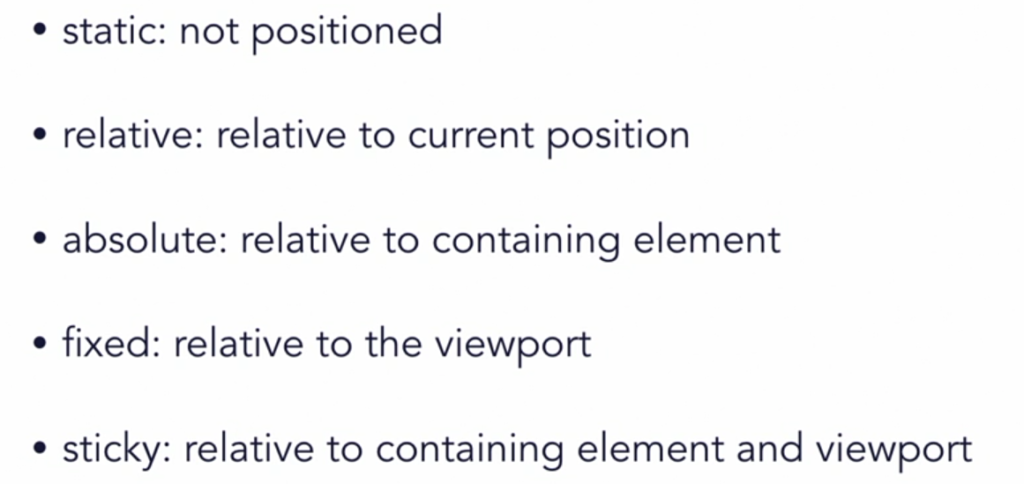
- What is an offset?
- What is sticky positioning?
Styling
Learning Objectives
- Apply basic aspects of CSS.
A list is a series of connected items, typically written one below the other. Lists, in both ordered and unordered varieties, are common sights on web pages. Ordered lists are numbered sequentially, 1, 2, 3… etc., and as such, there is not much a developer can do to style an ordered list. However, with unordered lists, developers have more options. They can change the type, the image, or even the position of unordered lists.
Depending on the web page theme, it may make sense for the developer to change the appearance of website links. Rather than the traditional blue-colored hyperlink, it may make more sense for the hyperlinks on the page to be green, for example. A developer would use pseudo-classes to make those changes.
Read section “Styling Lists” (opens new tab) of Chapter 3 in Practical Web Development.
This section teaches you about the methods for styling unordered lists.
As you read, consider the following questions:
- What options are available for list-style-type?
- How can a developer create a custom bullet?
Read section “Styling Anchors” (opens new tab) of Chapter 3 in Practical Web Development.
This section illustrates how to change the appearance of anchor tags.
As you read, consider the following question:
- How can you change the appearance of any tag?
Watch “Pseudo-Class Selectors and Links” (opens new tab) in the course CSS Essential Training from LinkedIn Learning.
This video teaches you about dynamic pseudo-classes.
As you watch, consider the following question:
- What is the purpose of a pseudo-class?
Watch “Styling Links” (opens new tab) in the course CSS Essential Training from LinkedIn Learning.
This video teaches you how to implement style hyperlinks on a webpage.
As you watch, follow along to practice applying styles to a web page.
Cascading Style Sheets – Summary
During this module, you learned about using CSS elements to add style to HTML text content. CSS defines how HTML content will display on a screen, media player, or even on paper when printed. The use of CSS allows you to control the layout of multiple web pages using the same CSS element segments, saving you a lot of time during your web page design.
You learned how inline, internal, and external CSS code formatting determines how attributes are assigned to different text structure aspects. You learned that selectors allow you to designate which HTML element you want to style and what style elements you wish to apply. You learned more about element properties and their values, which allow you to designate stylistic elements like font sets, fonts, text alignment, and color. CSS has eliminated the need for formatting in HTML and allows styles to be applied across multiple web pages at once, saving time and creating a more consistent look and feel for a website.
You reviewed multiple examples of rulesets for how to structure CSS style tags. Through your <Coding Connection> learning exploration, you learned how to apply a variety of text-related attributes, such as fonts, font text alignment, font size, style, and weight (bold or normal) and how much space should be occupied by each line of text. You are encouraged to bookmark each of the reference guides provided during this module (RGB color displayer and hex color picker) since they will be useful to you as a future web designer.
During this module you learned the following:
- There are three ways to insert CSS instructions into HTML
- inline definition
- internal definition
- external definition
- A rule-set contains the following:
- one selector
- set of declarations
- Specificity is a weight applied to CSS values to determine which CSS property value is applied.
- When to use block and inline elements
- How color and text related attributes affect the web page
- How to use the box model for design and layout
- How positioning and float can assist a developer with element layouts
- Styling methods
Read “Chapter 2 Cascading Style Sheets (CSS)” (opens new tab) of Creating Data-Driven Web Sites : An Introduction to HTML, CSS, PHP, and MySQL to assist in reviewing the module content:
- CSS Syntax
- selectors
- the Cascade
- properties
- the Box Model
- comments
- working with difficult browsers